![LandZ Logo - Royal Blue.jpg]](https://go.londonandzurich.co.uk/hs-fs/hubfs/LandZ%20Logo%20-%20Royal%20Blue.jpg?height=40&name=LandZ%20Logo%20-%20Royal%20Blue.jpg)
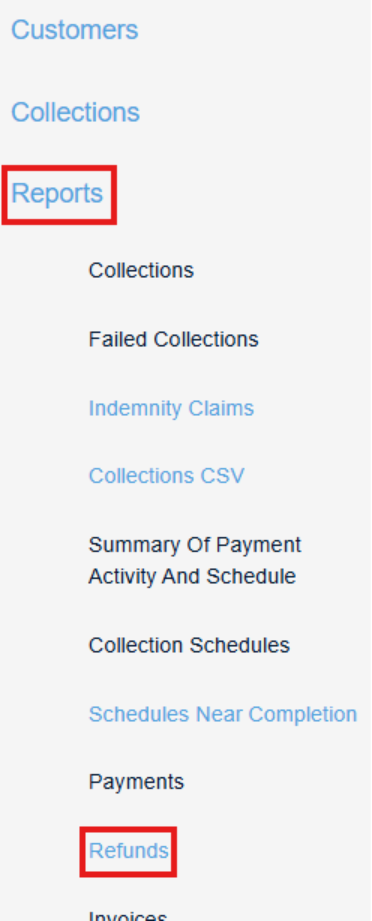
You can request a refund in the L&Z Portal using any of the following three methods:
- Via the Customer Record
- Via the Collections Report
- Via the Refunds Report
Each method is explained below.
1. Requesting a Refund via the Customer Record
- Go to Direct Debits at the top of the screen.

- In the left-hand menu, select Customer > List Customers.
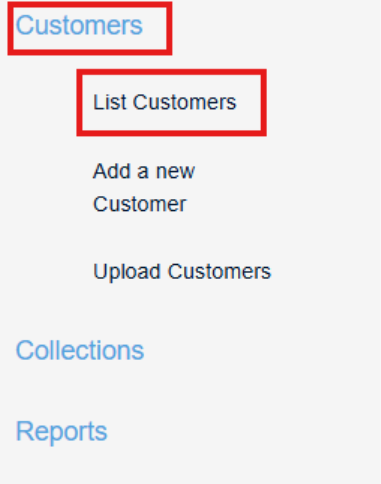
- Search for the customer you wish to refund.
- Tip: The list defaults to your most recently added customers. Changing the view to All Customers may make searching easier.
- When you have located the customer, Click the underlined Customer Ref to open the customer record.
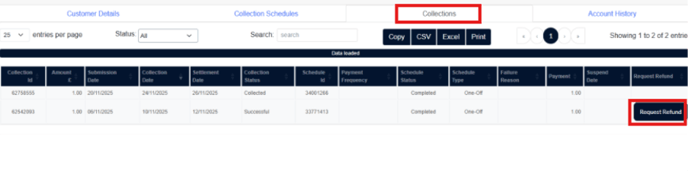
- Select the Collections tab to view all collected payments.
- Find the collection you wish to refund and click Request Refund.
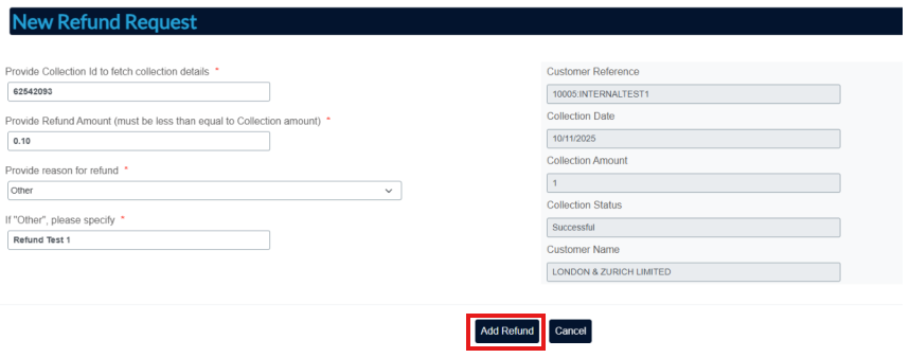
- Enter the refund details:
- Amount
- Reason (If “Other” is selected, you will be prompted to enter free-text details.)
- Select Add Refund to submit the refund request.
- Within the L&Z system go go to Direct Debits at the top of the screen.

- From the left-hand menu, select Reports > Collections.
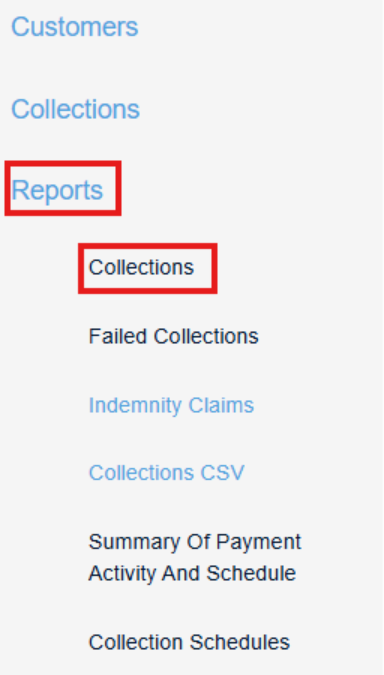
- Enter the date range of the collection and click Search.

- A list of collections will appear.
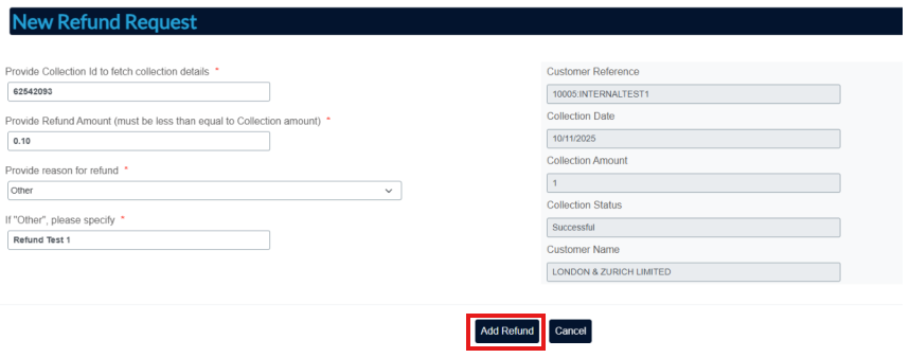
- Find the relevant collection and select Request Refund.

- Amount
- Reason (If “Other” is selected, you will be prompted to enter free-text details.)
- Click Add Refund to submit the request.
3. Requesting a Refund via the Refunds Report
- Within the L&Z system go to Direct Debits at the top of the screen.

- In the left-hand menu, select Reports > Refunds.
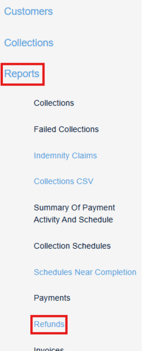
- Select New Refund.

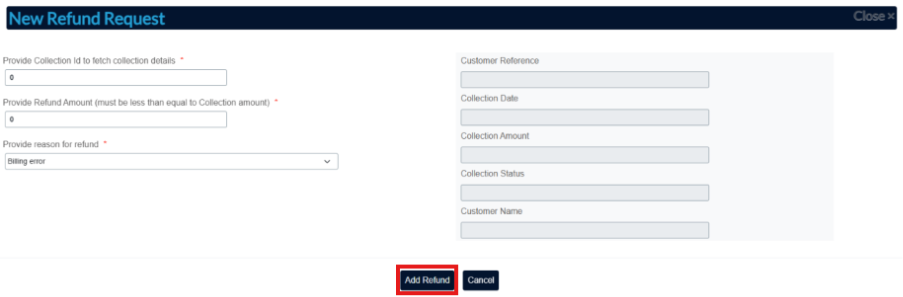
- Enter the refund details:
-
- Collection ID
- Amount
- Reason (If “Other” is selected, you will be prompted to enter free-text details.)
- Click Add Refund to submit the refund request.
Important Note
For Option 3, you must manually enter the Collection ID.
For Options 1 and 2, the Collection ID will be automatically populated.
If you have any questions, please contact our Customer Services team at customer.services@landz.co.uk.